RSS
Facebook
Twitter

Showing posts with label Browser. Show all posts

Wednesday, 5 March 2014

4.3.2014 ရက္ေန႔ေနာက္ဆံုးထြက္ရွိလာတဲ့ Google Chrome ေလးကိုတင္ေပးလိုက္ပါတယ္ဗ်ာဒီGoogle Chrome browser ေလးရဲ႕အေၾကာင္းကိုေတာ့မေျပာျပေတာ့ပါဘူး။ေနာက္ဆံုးထြက္ဘားရွင္းေတြကိုၾကိဳက္သူမ်ားေအာက္မွာေဒါင္းယူသြားႏိုင္ပါတယ္ဗ်ာ

Google’s game changing browser Chrome combines sophisticated technology with a simple UI, to create a faster, safer and easier browsing experience. Launched in 2008, Google Chrome quickly dominated the browser market to become the most used browser globally within 4 years of its public release. Google’s rapid and continuous development cycle ensures the browser continues to compete with the other most popular and advanced web browsers available.
Speed
Perhaps the area Google invested most of its development time to differentiate from other browsers. Google Chrome launches extremely quickly from your desktop, runs applications at speed thanks to a powerful JavaScript engine and loads pages rapidly using the WebKit open source rendering engine. Add to this quicker search and navigation options from the simplified UI and you have a browser that is pretty hard to beat on speed.
Clean, simple UI
Google Chrome’s most striking feature and a substantial factor in its popularity - the simple UI hasn’t changed much since the beta launch in 2008. Google focused on trimming down unnecessary toolbar space to maximise browsing real estate. The browser is made up of 3 rows of tools, the top layer horizontally stacks automatically adjusting tabs, next to a simple new tabs icon and the standard minimize, expand & close windows controls. The middle row includes 3 navigation controls (Back, Forward & Stop/Refresh), a URL box which also allows direct Google web searching and a star bookmarking icon. Extensions and browser settings icons line up to the right of the URL box. The third row is made up of bookmark folders and installed apps. Easily overlooked now, this clean UI was a breath of fresh air compared to the overcrowded toolbars of popular browsers pre-2008.
Privacy
Another hugely popular feature, Incognito mode allows you to browse privately by disabling history recording, reducing traceable breadcrumbs and removing tracking cookies on shutdown. Chrome’s settings also allow you to customize regular browsing privacy preferences.
Security
Chrome’s Sandboxing prevents malware automatically installing on your computer or affecting other browser tabs. Chrome also has Safe Browsing technology built in with malware and phishing protection that warns you if you encounter a website suspected of containing malicious software/activity. Regular automatic updates ensure security features are up to date and effective.
Customization
A vast selection of apps, extensions, themes and settings make your browsing experience unique to you. Improve productivity, security, navigation speed, pretty much anything you can think of with apps and extensions from the Google Chrome Store. Install themes created by top artists or make your own using mychrometheme.com. Sign in with your Google Account to back up your contacts, preferences, history as well as access all your Google tools with a single login.
http://www.aungkyawthyu.com/

Saturday, 1 March 2014

Download Internet Explorer 9 ( For PC )


PC မွာ အသံုးၿပဳဖို႔အတြက္  Internet Explorer 9 ေလးတင္ေပးလိုက္ပါတယ္။
Internet Explorer ကိုစြဲစြဲ ၿမဲၿမဲ သံုးေနက်တဲ႔ သူငယ္ခ်င္းမ်ားရွိရင္ ေဆာင္ထားႏုိင္ပါတယ္။
ေအာက္မွာ မူရင္း ဆိုဒ္နဲ႔ ၿပန္ခ်ိတ္ေပးထားပါတယ္။
အဆင္မေၿပရင္ေၿပာခဲ႔ပါေနာ္။

                    ဒီမွာယူပါ


Thursday, 27 February 2014


ဒီေကာင္ေလးကိုသားသားမိတ္မဆက္ေပးေတာ့ပါဘူးေနာ္ ၂၆.၂.၂၀၁၄ရက္ေန႔ကိအသစ္ထြက္ရွိလာတဲ့ အင္တာနက္ browser Chromeေလးတစ္ပါ ကဲေအာက္မွာေဒါင္းယူသြားလိုက္ေနာ္

http://www.aungkyawthyu.com/
 
Photoshop &Techniques 
ေဒါင္းနည္းမ်ားမသိပါက ဒီမွာ သြားၾကည့္ေပးပါခင္ဗ်ာ

 **  Step-1.ေအာက္က Download Button ကိုႏွိပ္လိုက္ပါ  
**  Step-2. "5sec". ေလာက္ေစာင္႕ေပးပါ။

**  Step-3. "  << SKIP AD >>   ".ကိုႏွိပ္ေပးပါ။
**  Step-4. Download Link က်လာပါလိမ္႕မယ္။
**  အဆင္ေျပပါေစဗ်ာ။

Download

Tuesday, 11 February 2014


Mozilla Firefox ထက္ ပိုတဲ့ Google Chrome ၏ ထူးျခားခ်က္မ်ား


အမ်ားစုကေတာ့ Mozilla Firefox ကို အသံုးျပဳၾကမယ္ ထင္ပါတယ္။ သို႔ေပမယ့္လည္း Google Chrome ကို သံုးစြဲသူေတြလည္း ရိွၾကပါတယ္။

 Google Chrome မွာ Mozilla Firefox ထက္ ပိုတဲ့ ထူးျခားခ်က္မ်ားေတြ ရိွပါတယ္။

အဲဒါေတြကေတာ့
(၁) အင္တာနက္လိုင္း ၾကေနလို႔ Mozilla Firefox က အလုပ္မလုပ္ဘူးဆိုရင္ Google Chrome က အလုပ္လုပ္ပါတယ္။
(၂) Mozilla Firefox က New Tab ေတြမ်ားရင္ ဟန္းပါတယ္။ သို႔ေသာ္ Google Chrome ကမဟန္းပါဘူး။
(၃) အင္တာနက္လိုင္း မေကာင္းလို႔ Mozilla Firefox မွာ ဆြဲထားတဲ့ download ၾကသြား ရင္ေတာင္Google Chrome က မၾကပါဘူး။
(၄) Mozilla Firefox က History ေတြမရွင္းပဲထားရင္ စက္ေလးတယ္။ Google Chrome က မေလးဘူး။
(၅) လိုခ်င္ေသာ အရာကို Mozilla Firefox ထက္ ပုိျမန္ေအာင္ Google Chrome ရွာေပးနိုင္ပါတယ္။


Monday, 10 February 2014

Mozilla Firefox Setup 28.0 Beta 1


Mozilla Firefox ရဲ႕ ေနာက္ဆံုး update အသစ္ေလး ပါ

update မလုပ္ရေသးတဲ့ သူငယ္ခ်င္းမ်ားအတြက္

 ဒီေနရာကေနျပန္လည္မွ်ေဝေပးလိုက္ပါတယ္ ခင္ဗ်ာ
DOWNLOAD


Monday, 9 December 2013


IM-Magic Partition Resizer 1.1.0 Full Unlimited Edition 
 
သူငယ္ခ်င္းတို့ကို partition tool ေလးနဲ့ဖိတ္ဆက္ေပးလိုက္ပါတယ္၊
partition ကို data ေတြမပ်က္စီးဘဲ တိုးခ်ဲ့ႏိုင္မွာျဖစ္ပါတယ္
 
၊ျပီးေတာ့ partition ေတြကို data ေတြမထိခိုက္ဘဲ က်ံု့ျခင္း၊ ပိုင္းျခားျခင္း၊ ေျပာင္းေရြ့ျခင္းႏွင့္ ေပါင္းစည္းႏိုင္ဖို့ ကူညီေပးပါတယ္။
 
လြယ္ကူျပီး ပံုစံရိုးရွင္းတာေၾကာင့္ အသံုးျပဳရတာအဆင္ေျပပါလိမ့္မယ္၊
 
Windows XP / Vista / 7 / 8 (x86-x64) တင္ထားတဲ့စက္မွာအသံုးျပဳႏိုင္ပါတယ္၊
 
ဒီေဆာ့လ္ဝဲရဲ့လုပ္ေဆာင္ခ်က္အျပည့္အစံုနဲ့ ဘာေၾကာင့္ဒီေဆာ့လ္ဝဲကိုသံုးသင့္လဲဆိုတာကိုေအာက္မွာဖတ္ႏိုင္ပါတယ္၊
အားလံုးအဆင္ေျပပါေစ။

Download >> Link 1 / Link 2


Monday, 2 December 2013


Firefox အသံုးျပဳသူမ်ားအတြက္ Firefox browser ကို စိတ္ၾကိဳက္ကလိလို႔ရေအာင္ ၄င္းရဲ႕ ေနာက္ကြယ္မွ လွ်ိဳ႕ ၀ွက္ခ်က္ေတြနဲ႔ မိတ္ဆက္ေပးလိုက္ပါတယ္...။ Firefox browser ဟာ အသံုးျပဳရ အဆင္ေျပတဲ႔ browser ဆိုတာ သံုးစြဲသူတိုင္း သိၾကပါတယ္...။ ဒါေပမယ့္ version အသစ္ေတြ ခဏခဏထြက္လို႔ upgrade ေပးျပီးတဲ႔ အခါမွာ page loading ဟာ ၾကာတတ္ပါတယ္...။ ဒါေၾကာင့္...

Firefox ရဲ႕ Page Loading ကို ပိုျမန္ေအာင္လုပ္ႏိုင္တဲ႔ နည္းလမ္း ( ၅ ) ခု

၁။ Pipelining ကို Enable ျပဳလုပ္ျခင္း

ဒါကေတာ့ Friefox version ေတြ အကုန္လံုးအတြက္ အေျခခံက်တဲ႔ နည္းလမ္းတစ္ခုပါ။ Firefox ရဲ႕ address bar ထဲမွာ about:config လို႔ရိုက္ Enter ေခါက္လိုက္ပါ... သတိေပးတဲ႔ message ေပၚလာပါလိမ့္မယ္။ I'll be careful, I proxise! ဆိုတာကို click ပါ။ ျပီးရင္ network.http.pipelining နဲ႔ network.http.proxy.pipelining ဆိုတာေတြကို လိုက္ရွာပါ။ မေတြ႔ရင္ အေပၚက Filter ထဲမွာ ရိုက္ျပီး ရွာလိုက္ရင္လည္း ရပါတယ္။ ေတြ႔ျပီးဆိုရင္ ၄င္းတို႔ေပၚမွာ double click လုပ္ျပီး values ေတြကို true လို႔ေပးလိုက္ပါ။ ျပီးရင္ network.http.pipelining.maxrequests ေပၚမွာ double click လုပ္ျပီးရင္ ၄င္းရဲ႕ value ကို 8 လို႔ေပးလုိက္ပါ။

၂။ Content switch threshold ကို ေလွ်ာ့ခ်ျခင္း

အကယ္၍ သင့္ရဲ႕ mouse (သို႔) keyboard ကို မေရႊ႕ မထိပဲ 0.75 စကၠန္႔႔ (Content Switch Threshold ) ၾကာခဲ႔မယ္ဆိုရင္ Firefox ဟာ frequency နိမ့္တဲ႔ interrupt mode ထဲကို ေရာက္သြားပါလိမ့္မယ္။ ဆိုလိုတာကေတာ့ ၄င္းရဲ႕ ၾကားခံဆက္သြယ္ေပးတဲ႔စနစ္ဟာ တုန္႔ျပန္မႈနည္းလာပါလိမ့္မယ္...ဒါေပမယ့္ သင့္ရဲ႕ page loadေတြကေတာ့ ပိုျပီးျမန္ဆန္လာမွျဖစ္ပါတယ္။ ဒါေၾကာင့္ အခုလိုပိုျပီးျမန္ဆန္လာေစဖို႔ Content Switch Threshold ကို ေလွ်ာ့ခ်ေပးဖို႔လိုပါတယ္။ about:config ကိုရုိက္ Enter ေခါက္ ျပီးရင္ ပြင့္လာတဲ႔ windows ေပၚမွာ right-click လုပ္၊ ျပီးရင္ New ထဲကမွာ Integer ကို click ၊ အဲဒီေနာက္ content.switch.threshold လို႔ရိုက္ OK ေပး ျပီးရင္ 250000 ( a quarter of a second ) ကိုထည့္ OK ေပးလိုက္... ဒါဆိုရပါျပီ။

၃။ Flash ကို Block ျခင္း

Flashblock extension ကို Install လုပ္ဖုိ႔လိုက္ပါ။ ( http://flashblock.mozdev.org တြင္ download ျပဳလုပ္ပါ။) ၄င္းက Flash appletေတြ အားလံုးကို loading ျပဳလုပ္ျခင္းမွာ block လုပ္ပါလိမ့္မယ္။ ဒါေၾကာင့္ web pages ေတြဟာ ပိုျပီးျမန္ျမန္ဆန္ဆန္ ေဖာ္ျပေပးပါလိမ့္မယ္။ အကယ္၍ Flash content အခ်ိဳ႕ ကို ရွာေဖြခ်င္တယ္ ဆိုရင္ေတာ့ ၄င္းရဲ႕ Placeholder ကို download အတြက္ click လိုက္ျခင္းအားျဖင့္ ပံုမွန္အတိုင္း applet ကို ျပသေပးပါလိမ့္မယ္။

၄။ cache အရြယ္အစားကို တိုးေစျခင္း

သင္ web တစ္ခုကို ဖြင့္ၾကည့္လိုက္စဥ္မွာ Firefox က site ရဲ႕ images နဲ႔ scriptေတြ ကို local memory cache တစ္ခုထဲမွာ သိမ္းဆည္းထားလိုက္ျပီး အကယ္၍ သင္က တူညီတဲ႔ page တစ္ခုကို ျပန္ျပီးဖြင့္မယ္ဆိုရင္ locak memory cache ကေန သိမ္းထားတဲ႔ အခ်က္အလက္ေတြကို ပိုျပီး ျမန္ျမန္ဆန္ဆန္ ျပန္ထုတ္ေပးႏိုင္ပါတယ္။ သင့္မွာ RAM အမ်ားၾကီး( 2GB နဲ႔အထက္ ) ရွိတယ္ဆိုရင္ ဖြင့္ျပီးသား page တစ္ခုကို ျပန္ဖြင့္တိုင္းမွာ ျမန္ျမန္ဆန္ဆန္ဖြင့္လို႔ရေစဖုိ႔အတြက္ cache size ကို တိုးထားသင့္ပါတယ္။ ဒီ့အတြက္ about:config လို႔ရိုက္ Enter ႏွိပ္ ျပီးရင္ ပြင့္လာတဲ႔ window ထဲက ဘယ္ေနရာမွာမဆို right-click ျပီးရင္ New ထဲက Integer ကိုသြားပါ။ အဲဒီထဲမွာ browser.cache.memory.capacity လို႔ရိုက္ OK ေပး၊ ျပီးရင္ ၄င္းေပၚမွာ double-click လုပ္၊ value ကို 65536 လို႔ရိုက္ OK ေပး၊ အဲဒီေနာက္ သင့္ရဲ႕ browser ကို restart ေပးလိုက္ပါ။

၅။ Render ျမန္ေစျခင္း

ၾကီးမားျပီး ရႈပ္ေထြးတဲ႔ web pageေတြကို ဖြင့္တဲ႔ အခါမွာ အခ်ိန္ေတာ္ေတာ္ၾကာတတ္ပါတယ္။ Firefox က သင့္ကို မေစာင့္ေစခ်င္ပါဘူး ... ဒါေၾကာင့္ 0.12 စကၠန္႔တိုင္းမွာ ရရွိတဲ႔အခ်က္အလက္ေတြ(content notify interval)ကို default အားျဖင့္ေဖာ္ျပေပးပါတယ္။ ဒီလိုအခ်ိန္ေတြမွာ browser ဟာ တျဖည္းျဖည္း ဖ်က္ကနဲ႔ ဖ်က္ကနဲ ေဖာ္ျပေပးျပီး တိုးလာတဲ႔ စုစုေပါင္း page loading လုပ္တဲ႔ အခ်ိန္ကိုလည္း မၾကာမၾကာေလ်ာ့က်ေစပါတယ္။ ဒါေၾကာင့္ ၾကီးမားတဲ႔ content notify interval ဟာ ပိုျပီး ျမန္ဆန္ေစပါလိမ့္မယ္။ ဒီ့အတြက္... about:config ကိုရိုက္၊ Enter ႏွိပ္၊ ျပီးရင္ ပြင့္လာတဲ႔ Window ရဲ႕ တေနရာရာမွာ right-click ( Apple userေတြအတြက္က ctrl-click)လုပ္၊ New ထဲက Integer ကို click ျပီး preference name ကို content.notify.interval လို႔ရိုက္ OK ေပး ျပီးေတာ့ 500000 ( ငါးသိန္း) လို႔ရိုက္ထည့္ ျပီးရင္ OK ထပ္ေပးပါ။
Window ထဲမွာ right-click ထပ္လုပ္ပါ။ ျပီးရင္ New ထဲက Boolen ကို click ပါ။ ဒီတၾကိမ္မွာေတာ့ content.notify.ontimer ဆိုတဲ႔ value တစ္ခုျပဳလုပ္ျပီး True ေပးလိုက္ပါ။ ဒါဆိုျပီး ပါျပီ။


Password Hacking

အကယ္၍ သင္က သင့္ရဲ႕ browser မွာရွိတဲ႔ Tools > Options > Security ထဲမွာ Remember password for sites ကို check ေပးထားမယ္ဆိုရင္ site တစ္ခုကို ၀င္တဲ႔ အခါတိုင္းမွာ notification bar တစ္ခု ေပၚလာျပီး username နဲ႔ password ကို save လုပ္ မလုပ္ဆိုတာ ေမးပါလိမ့္မယ္။ အကယ္၍ uncheck လုပ္ထားရင္ေတာ့ ေမးမွာမဟုတ္ပါဘူး။ check မေပးထားလည္းပဲ အလိုအေလွ်ာက္ save လို႔ရေအာင္ javascrpit ဖိုင္ တခ်ိဳ႕ ကို ျပဳျပင္လိုက္ရင္လည္း အလိုအေလွ်ာက္ save လုပ္ႏိုင္ပါတယ္။ ဘယ္လိုလုပ္ရမလဲဆိုတာကို တခ်ိဳ႕ Social Site ေတြမွာလည္း ေဖာ္ျပထားတာေတြ႔တဲ႔အတြက္ မေဖာ္ျပေပးေတာ့ပါ။ ေနာက္တစ္ခုက Bookmoark Sync ကို သံုးျပီးေတာ့လည္း Firefox မွာ username နဲ႔ password ေတြကို save လို႔ရပါေသးတယ္။
အခုလို save လုပ္ထားတဲ႔ password ေတြကို ဘယ္လို hack လို႔ရႏိုင္သလဲ ဆိုတာကို ေဖာ္ျပေပးပါမယ္။ hacking လုိ႔ ေခါင္းစဥ္တပ္ထားေပမယ့္ ဒါဟာ အမွန္တကယ္ hacking တစ္ခုေတာ့ မဟုတ္ပါဘူး ။ Firefox ဟာ သင့္ရဲ႕ computer ေပၚမွာ အမ်ိဳးအမ်ိဳးေသာ သတင္းအခ်က္အလက္ေတြကို သိမ္းဆည္းႏိုင္တဲ႔ bookmarks, plugins နဲ႔ ့history ကဲ႔သို႔ profile directory တစ္ခုကို ဖန္တီးပါတယ္။ အဲဒီမွာ ဖုိင္ ႏွစ္ခုဟာ password ေတြကို သိမ္းထားဖုိ႔အတြက္ အသံုးျပဳေလ့ရွိပါတယ္။
၁။ key3.db - ဒီဖုိင္က save ထားတဲ႔ passwordေတြကို encrypt လုပ္ျပီး encryption key ရဲ႕ copy တစ္ခုကို သိမ္းထားပါတယ္။
၂။ signons.txt, stgnons2.txt (သို႔) stgnons3.txt - ဒီဖိုင္ေတြက save လုပ္ထားတဲ႔ passwords ေတြကို သိမ္းထားပါတယ္။ ၄င္းတို႔ဟာ encrypt လုပ္ထားတဲ႔ passwords နဲ႔ Logonေတြပါ၀င္တဲ႔ ရိုးရုိး text file ေတြျဖစ္ပါတယ္။ signons.txt file ကေတာ့ Firefox version 2 အေစာပိုင္း version ေတြမွာ အသံုးျပဳျပီး signons2.txt ကေတာ့ Firefox version 2.0.0.2 နဲ႔ ေနာက္ပိုင္း version ေတြမွာ အသံုးျပဳပါတယ္။ Firefox 3 နဲ႔ ေနာက္ပိုင္း Version အသံုးျပဳသူေတြကေတာ့ signons3.txt file ကိုရွာရပါမယ္။ signons3.txt file ကို signons.sqlite နဲ႔ ဖံုးအုပ္ထားပါတယ္။

ဒီ file ေတြကို ဘယ္မွာ ရွာရမလဲဆိုေတာ့ Profile directory ထဲမွာ ၄င္း fileေတြကို သိမ္းထားပါတယ္။ ေအာက္မွာေဖာ္ျပထားတဲ့အတိုင္း Run ထဲမွာ ရိုက္ထည့္လိုက္ရင္ operating system ေပၚမွာ ျပဳလုပ္ထားတဲ႔ profile folder ထဲကို browsing လုပ္ျခင္းအားျဖင့္ ၀င္ေရာက္ႏိုင္ပါတယ္...

Windows 7/Vista/ XP : %APPDATA%\Mozilla\Firefox\Profiles\
Mac OS : ~/Library/Application Support/Firefox/Pofiles/

အကယ္၍ သင့္ရဲ႕ Profile directory ကိုမေတြ႔ဘူးဆိုရင္ေတာ့ Mozila support page မွာ သြားၾကည့္ပါ။
၄င္း file နွစ္ခုကို တစ္ျခားcomputer တစ္ခုဆီသို႔ copy ကူးျပီးပို႔လိုက္လို႔ရပါတယ္...။ သင္ဟာ password ေတြကို save လုပ္မိမယ္ဆိုရင္ အဲဒီဖိုင္ေတြထဲမွာ သင့္ရဲ႕ password ပါသြားပါျပီ။ encrypt လုပ္ထားတဲ႔ password ေတြကို ရွာဖုိ႔အတြက္က Fire Password Viewer ကို အသံုးျပဳႏိုင္ပါတယ္။


Hacking Network Connection

၁။ server ေပါင္းစံုမွ connection ကို ရႏိုင္သမွ်ရေအာင္...

about:config ထဲမွာ network.http.max-connection ဆိုတာရွိပါတယ္။ ၄င္းက မ်ားစြာေသာ network connection ေတြကို ထိန္းခ်ဳပ္ျပီး Firefox က Web servers အေရအတြက္ ဘယ္ေလာက္မ်ားမ်ား တၾကိမ္ခ်င္း ျပဳလုပ္ပါတယ္။ အကယ္၍ သင္ဟာ tabေတြ အမ်ားၾကီးနဲ႔ home page အမ်ိဳးမ်ိဳးကိုဖြင့္လို႔အဆင္ေျပေစဖို႔ (သို႔) အမ်ိဳးမ်ိဳးေသာ server ေတြနဲ႔ ခ်ိတ္ထားတဲ႔ pageေတြကို ၀င္ေရာက္ခ်င္တယ္ ဆိုရင္ network.http.max-connection ေပၚမွာ double click လုပ္ျပီး value ကို 32လို႔ထည့္ေပးလိုက္ပါ။

၂။ တူညီတဲ႔ server မွ connection ကို ရႏိုင္သမွ်ရေအာင္...

about:config ထဲမွာရွိတဲ႔ network.http.max-connections-per-server ကေတာ့ သီးျခား connection ေတြအတြက္ ထိန္းခ်ဳပ္ပါတယ္။ page တစ္ခုထဲမွာရွိတဲ႔ element မ်ိဳးစံုကို အျပိဳင္download ခ်ႏိုင္ဖုိ႔ ခြင့္ျပဳတဲ႔ တူညီတဲ႔ server အတြက္ပဲ အလုပ္လုပ္ပါတယ္။ network.http.max-connections-per-server ကို double-click လုပ္ျပီးရင္ value ကို 16 လို႔ထည့္လိုက္ပါ။ ဒီထက္ေတာ့ ထက္မျမွင့္ပါနဲ႔ေတာ့ ဘာလို႔လဲ ဆိုေတာ့ အခ်ိဳ႕ site ေတြက bandwidth-protection (သို႔) antileeching measure အတြက္ သင့္ကို block ပါလိမ့္မယ္။


Hacking Addon

Hacking Addon ေတြကို အသံုးျပဳခ်င္ရင္ https://addons.mozilla.org/en-US/firefox/tag/hacking မွာ ရယူႏုိင္ပါတယ္။

အခုအေပၚမွာ ေျပာခဲ႔တာေတြက Firefox ကို hack ႏိုင္တဲ႔ နည္းလမ္းေတြထဲက အနည္းငယ္ကိုသာ ေဖာ္ျပခဲ႔တာျဖစ္ပါတယ္။ အျပည့္စံုဆံုး နဲ႔ အမ်ားၾကီးသိခ်င္တယ္ .... ကလိခ်င္တယ္ ဆိုရင္ေတာ့ ေအာက္မွာ ေပးထားတဲ႔စာအုပ္ကို ဖတ္ဖို႔အၾကံျပဳပါရေစ...



Wednesday, 6 November 2013

Firefox 21.0


File Name :Firefox Setup 21.0.exe
 File Size :20.3 MB
 Requirements :Windows XP |Server 2003 | Vista |Server 2008 | Win 7
 Languages :English | …..
 License : Freeware
 Date Add :05-15-2013
 Homepage :
www.mozilla.com/firefox

Download    


  ကိုယ္ပိုင္ browser ျပဳလုပ္နည္းေလးကို တင္ေပးပါ့ မယ္ဗ်ာ။

OK တယ္ဆိုရင္ စမယ္ေနာ္။ ဘာမွ မခက္ပါဘူး။ ေအာင္ကိုထက္ကို အထင္ၾကီးေနတဲ့ သူေတြကေတာ့ အန္.... ဆိုၿပီးျဖစ္သြားမွာ က်ိမ္းေသပါတယ္။ ေိေိ :D ။ ကၽြန္ေတာ္ေျပာထားသလို ဘာ language မွ မလိုသလို programmer ၾကီးလဲ ျဖစ္ဖို႕မလိုပါဘူး။ အဓိကက နည္းလမ္းေလးသိရင္ရပါၿပီ။


အရင္ဆံုး  ဒီေနရာေလးကိုႏွိပ္ၿပီး  browser ျပဳလုပ္ဖို႕ website ေလးကို သြားလိုက္ပါ။ ၿပီးသြားရင္ Start Now ဆိုတာကို ႏွိပ္လုိက္ပါ။ ေနာက္တစ္မ်က္ႏွာကို ေရာက္သြားပါလိမ့္မယ္။


အဲ့ဒီထဲမွာ စာေၾကာင္းႏွစ္ေၾကာင္းေတြ႔ရပါလိမ့္မယ္။ ပထမဦးဆံုးစာေၾကာင္းမွာ ကိုယ့္ browser ရဲ႕ နာမည္ကိုေရးလိုက္ပါ။ ေနာက္ထပ္ေအာက္က တစ္ေၾကာင္းမွာကေတာ့ ကိုယ့္ browser ရဲ႕ ပံုေလးကို Browse ကေနၿပီးေရြးေပးလိုက္ပါ။


ၿပီးသြားရင္ Select Theme ဆိုတာကို ထပ္ႏွိပ္လုိက္ပါ။ ၿပီးရင္ themes ေတြကိုေရြးခိုင္းပါလိမ့္မယ္။ အဲ့ဒီထဲက ကိုယ္ၾကိဳက္တဲ့ themes ပံုေလးကို ေရြးေပးလိုက္ပါ။အဲ့ဒါေတြအကုန္ၿပီးသြားရင္ ညာ ဘက္ေအာက္ ဆံုးနားမွာရွိတဲ့ I agree to the term of use ဆိုတာကို အမွန္ျခစ္ေပးၿပီးရင္ Finish and download ဆိုတဲ့ button ေလးကိုႏွိပ္ေပးလိုက္ပါ။ အဲ့ဒါဆိုရင္ ကိုယ့္ရဲ႕ ကိုယ္ပိုင္ browser ေလးနဲ႕ ကိုယ့္ကြန္ပ်ဴတာမွ လန္းႏိုင္ပါၿပီဗ်ာ။ ေိေိ သိသြားေတာ့လည္း ဘာမွမဟုတ္သလိုပဲေနာ္။


From ; http://saithu102.blogspot.com/


Tuesday, 5 November 2013

IT Studier Broswer EXE (for PC)


မဂၤလာပါ မိတ္ေဆြတို႕ဆိုတာထက္ ပိုၿပီးရင္းႏွီးမႈရွိသြားေအာင္ မဂၤလာပါသူငယ္ခ်င္း တို႕လို႕ ႏႈတ္ဆက္ ပါရေစဗ်ာ။ ဖန္တီးထားတဲ့ browser ေလးနဲ႕မိတ္ဆက္ေပးပါရေစ။ ဖန္တီးထားတယ္ဆိုလို႕လည္း အထင္ၾကီးမသြားပါနဲ႕အံုးေနာ္။ ဘာ language နဲ႕မွ မေရးထားသလို ကၽြန္ေတာ္က programmer လည္းမဟုတ္ေသးပါဘူး။ ကၽြန္ေတာ္ျပဳလုပ္နည္းကို ေတာ့ ေနာက္ထပ္ post တစ္ခု အသစ္ေရးေပါ့မယ္။

အခုေလာေလာဆယ္တာ့ ကၽြန္ေတာ့္ရဲ႕ browser ေလးကို အရင္ မိတ္ဆက္ေပးလိုက္ပါတယ္။ သံုးရတာ ၾကိဳက္တယ္ သူငယ္ခ်င္းတို႕လည္း ကိုယ္တိုိင္ browser ေလးနဲ႕ကိုယ့္ computer မွာ လန္းခ်င္တယ္ ဆိုရင္ေတာ့ ျပဳလုပ္နည္းကို ထပ္ေလ့လာေပါ့ေနာ္။ အရင္ဆံုး IT Studier Browser ကို ေအာက္က link ကေန download လုပ္ လိုက္ပါ။ ၿပီးရင္ double click ႏွိပ္လိုက္တာနဲ႕ သူ႔ဘာသာသူ download လုပ္ပါလိမ့္ မယ္။ အဲ့ဒါေလးကို ခဏေစာင့္ေပးလိုက္ပါ။ ၿပီးသြားရင္ ေတာ့ အသံုးျပဳလို႕ရပါၿပီ။

အဆင္ေျပတယ္မေျပဘူးဆိုတာေလးကိုေတာ့ comment ေပးခဲ့ေစခ်င္ပါတယ္။ အဲ့ဒါမွ ကၽြန္ေတာ္ ျပဳလုပ္ နည္းကို တင္ေပးသင့္ မတင္ေပးသင့္ ဆံုးျဖတ္ရမွာမို႕လို႕ပါ။ 

ေအာက္က link ေတြကေန download လုပ္ႏိုင္ပါတယ္။ 
အားလံုးအဆင္ေျပၾကပါေစ.... 
 
 Credit ; Software ျမိဳ႕ေတာ္

Monday, 4 November 2013

Browser Error အေၾကာင့္


မဂၤလာပါဗ်ာ..အခုေျပာျပမွာကေတာ့ Browser Error ေတြနဲ႔ပက္သတ္လုိ႔ပါဒါက ကၽြန္ေတာ္ေလ့လာမိသေလာက္ မွတ္စုမ်ားထဲက ျပန္လည္ကူးယူေ၀မွ်တာပါ  Browser ဆိုတာကေတာ့
Websiteေတြကိုအသံုးျပဳတဲ့အခါမွာ အသံုးျပဳတဲ့ Web Browser ကိုေျပာတာပါ။ဥပမာ ... Internet
Explorer , Mozilla Firefox , Flock တို႔စသျဖင့္ေပါ့။ ၎ Browser ေတြအသံုးျပဳတဲ့အခါမွာ
ျဖစ္တက္တဲ့ Error ေလးေတြ အေၾကာင္းကိုေျပာျပခ်င္ပါတယ္။Browser Error ေတြကေတာ့
Browser တိုင္းမွာျဖစ္တက္ပါတယ္။ Browser Error Message ကို တကယ္ေတာ့ HTTP Status
Codes လုိ႔ေခၚၿပီး Web Page ေတြကို Loadingလုပ္တဲ့အခါမွာ ေတြ႕ရတဲ့ Error အမ်ုဳိးအစားေတြပါ။
အေတြ႕မ်ားတဲ့ Browser Error ေတြနဲ႔ ဘယ္လုိေျဖ႐ွင္းရမလဲဆိုတာကို ေဖာ္ျပေပးလုိက္ပါတယ္။

400: Bad Request Error
400 Bad Request browser error ကေတာ့ Website Server ဆီကို web page ေတြ Load လုပ္ဖို႔
Request ေတြေပးပို႔တဲ့အခါမွာ ၎ Server ကေန request ကိုprocess မလုပ္တဲ့အခါ ၊ Request
ကိုနားမလည္တဲ့အခါေတြမွာ ေတြ႔ရေလ့႐ွိတဲ့ Error ပါ။ ဒီ Error ျဖစ္ၿပီဆိုရင္ေတာ့
" 400: Bad Request " (or)
" HTTP Error 400 - Bad Request "
ဆိုၿပီးေခၚေလ့႐ွိပါတယ္။ 400 Bad request Error က URL ကို မွား႐ုိက္လို႔ေသာ္လည္းေကာင္း ၊ URL
ကို Point လုပ္ထားတဲ့ Link က မွားေန၍ေသာ္လည္းေကာင္းျဖစ္တက္ပါတယ္။ ဆိုလုိတာက Web
Site မွား႐ုိက္လုိ႔ (or) Web Site Link ကို Point လုပ္ထားတာ မွားေနလုိ႔ ျဖစ္တက္ပါတယ္။ ဒါေၾကာင့္
မိမိၾကည့္လုိတဲ့ Web Site ကိုေသခ်ာမွန္ကန္စြာ ႐ုိက္ထည့္ပါ။
401: Unauthorized Error
401 Unauthorized Error ကေတာ့ Website ေတြကို ၀င္ေရာက္သံုးစြဲတဲ့အခါေတြမွာ ပထမဦးဆုံး
Log on ၀င္တဲ့အခါေတြမွာ ျဖစ္တက္တဲ့ Error မ်ဳိးပါ။ အကယ္လုိ႔ Log on၀င္၀င္ခ်င္း 401 Error
ကိုရ႐ွိတာဆိုရင္ေတာ့ မိမိ၀င္လုိ္က္တဲ့ Credential (မည္သူမည္၀ါျဖစ္ေၾကာင္း)
ကအေၾကာင္းတစ္ခုခုေၾကာင့္ လြဲမွားေနလုိ႔ပါ။ ဒါေၾကာင့္ User name နဲ႔Password ကို
ေသခ်ာစြာ႐ုိက္ထည့္ပါ။ URL က Valid ျဖစ္တာေသခ်ာတယ္ဆိုရင္ေတာ့ Website ရဲ႕ Main page
ကိုသြားၿပီး Login (or) Secure Accessအေၾကာင္းကိုေပးထားတဲ့ Link ကို႐ွာေဖြပါက ၎ေနာက္
မိမိရဲ႕ Credential နဲ႔ တဖန္ျပန္ try ၾကည့္ပါ။
403: Forbidden Error
403: Forbidden Browser Error ကေတာ့ URL က Web page အစား directory ကို Point
လုပ္ထားတဲ့အခါမွာ ျဖစ္တက္ပါတယ္။ အကယ္၍ မိမိေရာက္႐ိွဖို႔ ႀကိဳးစားေနတဲ့page က
မွန္ကန္တယ္ဆိုရင္ေတာ့ ဒီ Error က အျခား mistake ျဖစ္ပါလိမ့္မယ္။
404: Not Found Error
ဒီ Error က ေတာ္ေတာ္မ်ားမ်ားမွာေတြ႔ရေလ့႐ွိတဲ့ Error မ်ဳိးပါ။ 404 Error ေတြ႔ၿပီဆိုရင္ေတာ့
ေအာက္ပါအတိုင္း Error ေတြေပၚတက္ပါတယ္။
404 Error ကေတာ့ မိမိ၀င္ေရာက္အသံုးျပဳဖို႔ ႀကိဳးစားတဲ့ Web page က Website ရဲ႕ Server
မွာမေတြ႕လုိ႔ပါ။ 404 Error ေတြ႔လုိ႔႐ွိရင္ေတာ့ Refresh / Reload buttonကိုႏွိပ္ၿပီး web page ကို
Retry လုပ္ပါ။ ၎ေနာက္ address bar မွာ URL ကို ထပ္႐ိုက္ၿပီး ျပန္၀င္ၾကည့္ပါ။ ဥပမာ “
www.w.com/a/b/c.htm ဆိုၿပီး၀င္လုိက္လုိ႔ 404 Errornot found လုို႔ျပေနတယ္ဆိုရင္
www.w.com/a/b လုိ႔႐ုိက္ထည့္ပါ။ အဲဒါမွမရေသးရင္ တစ္ဆင့္ျပန္ေလ်ာ့ၿပီး www.w.com/a
လုိ႔႐ိုက္ထည့္ၿပီးျပန္၀င္ၾကည့္ပါ။
408: Request Timeout Error
408 Error ကေတာ့ web page ေတြကို Loading လုပ္တဲ့အခါမွာ website ရဲ႕ Server က
ျပင္ဖို႔ေစာင့္ရတဲ့အခ်ိန္ထက္ အခ်ိန္ၾကာျမင့္စြာပိုယူလုိ႔ျဖစ္ေပၚတက္တဲ့ Error ပါ။ဆိုလုိတာက မိမိ
Website ရဲ႕ Connection က timeout ျဖစ္သြားတာပါ။ Error ေျဖ႐ွင္းဖို႔ဆိုရင္ေတာ့ Refresh ၿပီးျပန္
try ပါ။ Address bar မွာ address ကို ျပန္႐ိုက္ၿပီးျပန္စစ္ၾကည့္ပါ။ Slow connection
ခဏခဏျဖစ္ရင္လည္းပဲ တစ္ရံတစ္ခါမွာ ဒီလုိ Error မ်ဳိးျဖစ္တက္ပါတယ္။ ဒါေၾကာင့္ connection
ကိုလည္းစစ္ေဆးသင့္ပါတယ္။
500: Internal Server Error
500 Bad Server Error ကေတာ့ ေယဘုယ်အားျဖင့္ အေတြ႕ရမ်ားပါတယ္။ ဒီ Error မ်ဳိးကေတာ့
Website ရဲ႕ Server က ခၽြတ္ယြင္းသြားတဲ့အခါေတြမွာ ေတြ႐ွိရပါတယ္။
Server ဘက္က Error ပါ။ မိမိရဲ႕ PC (or) Internet Connection နဲ႔မဆိုင္ပါဘူး။ ဒါေၾကာင့္
မၾကာခဏ Refresh လုပ္ၾကည့္ၿပီးသံုးပါ။
502: Bad Gateway Error
502 Bad Gateway Error ကေတာ့ Server တစ္ခုကေန web page ေတြကို accessing
လုပ္ဖို႔ႀကိဳးစားတဲ့အခါ အျခား Server ကေန invalid response ကိုလက္ခံရ႐ွိခ်ိန္(or) Browser
ကအျခား request ေတြကို ျဖည့္တဲ့အခါေတြမွာ ျဖစ္ေပၚေလ့႐ွိတာပါ။ 502 Error က Internet
ေပၚမွာ႐ွိတဲ့ Server ေတြၾကားက network ျဖစ္တာေၾကာင့္ မိမိ PCေတြ ၊ Internet connection
ေတြနဲ႔မဆုိင္ပါဘူး။ ဒါက Server ဘက္ကေျဖ႐ွင္းရမယ့္ ကိစၥပါ။ ဒါေၾကာင့္ခဏေလာက္ေစာင့္ၿပီး
မိမိလုပ္လုိ႔ရတာကေတာ့ Refresh button ကိုခဏခဏႏွိပ္ၿပီး web page ကို ျပန္ try ဖို႔ပါ။
503: Service Unavailable Error
503 Error ကေတာ့ ခဏေလာက္ပဲ Web Site Server ကိုမေတြ႔႐ွိျခင္းပါ။ ဒီ Error မ်ဳိးျဖစ္ပါက
Server ကို Maintenance လုပ္ေနခ်ိန္ (or) temporary overloading ေတြေၾကာင့္ျဖစ္တာပါ။ ကဲ
အခုေတာ့ ဒီေလာက္ႏွင့္ပဲေက်နပ္ပါဦးေနာ္။


မဂၤလာပါဗ်ာဒီေန.ကၽြန္ေတာ္တင္ဆက္ေပးခ်င္တာကေတာ့ ကြန္ျပဴတာမွာ 
 
အင္တာနက္ျမန္နွုန္းနည္းနည္းျမွင့္ၾကည္ျခင္းပဲျဖစ္ပါတယ္
 
 တကယ္ဆိုရင္ေတာ့မူရင္းေကာင္းမွပံုထြက္ေကာင္းမွာပါ ဒါ့ေၾကာင့္လဲ 
 
အရမ္းမေမွ်ာ္လင့္ဖို.ၾကိဳေျပာထားပါရေစ 
 
ကၽြန္ေတာ္တို.သိသေလာက္အနည္းငယ္ေလးကိုမွ်ေ၀တာျဖစ္တဲ့အတြက္ လိုအပ္ခ်က္မ်ားရွိခဲ့ရင္လဲ 
 
နားလည္ေပးၾကဖို.ေမွ်ာ္လင့္ပါတယ္ ကဲ့စလိုက္ရေအာင္ဗ်ာ…
 
 
ပထမဆံုး Run box ကိုေခၚဖို.အတြက္ 
 
window key နဲ. R ကို တြဲႏွိပ္ပါ Run box ထဲမွာ gpedit.msc လို.ရိုက္ထည္.လိုက္ပါ…


ပံုမွာပါတဲ့ အတိုင္းက်လာမယ္ ဒါဆိုရင္ Local Computer Policy>Computer 
 
Configuration>Administrative Templates>Network>QoS Packet Scheduler.

အထိအဆင့္ဆင့္သြားလိုက္ပါ


အိုေက Limit reservable bandwidth ကို double ႏွိပ္ျပီး run 
 
ဖြင့္လိုက္ပါ ျပီးသြားရင္ေတာ့ေအာက္ကပံုေလးလို...


Enable လုပ္ေပးျပီး reservable bandwidth 20% ကို 0%မွာထားေပးလိုက္ပါ…..ျပီးရင္ေတာ့ Apply , OK ေပါ့…
ျပီးသြားရင္ browser မွာရွိတဲ့ cookies ေတြ cache နဲ. History ေတြကို ရွင္းလင္းျပီး restart လုပ္ေပးလိုက္ပါ..
    

               အားလံုးပဲအဆင္ေျပပါေစဗ်ာ…………….


Monday, 28 October 2013


မဂၤလာပါဗ်ာ browser ေတြထဲမွာ နာမည္ႀကီး လူသုံးမ်ားလွတဲ႔ Google Chrome Update ေလးကုိ တင္ေပးလုိက္ပါတယ္။
 
 Install ၿပဳလုပ္တဲ႔အခါ Nextတုိ႔ ဘာတုိ႔ ေပၚမွာမဟုတ္ပါဘူး Winrar ထဲက "exe" ကုိ ႏွိပ္လုိက္တာနဲ႔ တန္းဝင္သြားမယ္ ၿဖစ္ပါတယ္။
 
 File Size ကေတာ႔ (32MB) ရွိပါတယ္....................။
 
                                                  >>>Download Now<<<


Sunday, 27 October 2013

Firefox 25.0 Beta 11 (for computer)


October 24 ရက္ေန.ကမွ ထြက္တဲ့ Firefox version အသစ္ေလး တင္ေပးလိုက္ပါတယ္။ Update ေလးဆိုေတာ့ အေတာ္သံုးလို.ျမန္တယ္။ ပီးေတာ့facebookသံုးတဲ့အခိ်န္မွာ Script error လဲ ရွင္းပါတယ္။Update ျကိုက္တဲ့ေဘာ္ဒါေတြ ေအာက္ကလင့္မွာ ေဒါင္းေလာ့ခ္ရယူ အသံုးျပဳႏုိင္ပါတယ္ခင္ဗ်


I found firefox lastest version(Firefox 25.0 Beta 11) . This version is very nice and very fast at browsing web pages. If you use, download following link------- enjoy  !!!!


Download Here        


အခုတင္ေပးလိုက္တဲ႕ Add-ons ေလးက အရမ္းကိုလန္းလြန္းလို႕  တင္ေပးလိုုက္တာပါ။
 
ဒီေကာင္ေလးက Firefox ကို 3D အေနအထားနဲ႕ ျမင္ရမွာျဖစ္ပါတယ္။
 
 Internet ကိုလန္းလန္းေလးသံုးခ်င္သူမ်ားအတြက္ေပါ့။
 
 Link ကိုေတာ႕ တိုက္ရိုက္ဘဲ ကၽြန္ေတာ္ျပန္တင္ေပးထားပါတယ္။
 
 စမ္းၾကည္႕ခ်င္တဲ႕သူငယ္ခ်င္းမ်ားေအာက္က Link မွာ စမ္းသပ္နိုင္ပါတယ္။
 
အားလံုးဘဲအဆင္ေျပၾကပါေစ....


Add-ons

လုိခ်င္ရင္ေတာ့ေအာက္ကလင့္ကုိႏုိုပ္ျပီးေဒါင္းယူလုိက္ေနာ္။


Enjoy!
 
HNGET NGAI

Saturday, 26 October 2013


အခုေတာ့ Android ဖုန္းအတြက္ ဟူးဟူးထျမန္မယ့္ Browser ေလးေပးပါဦးမယ္။ ျမန္လည္းျမန္သလို ၊ လြယ္လည္းလြယ္တယ္။ ေနာက္ၿပီးသူက မ hang ႏိုင္ဘူး။ နာမည္ေက်ာ္ေတာ့ မဟုတ္ေပမယ့္ အရမ္းေကာင္းပါတယ္။ October 21 2013 ေနာက္ဆံုးထုတ္ပါ။ ပိုၿပီးသိခ်င္ရင္ http://adf.ly/YEdu4 မွာဖတ္ၾကည့္ပါ။ ေအာက္ပါအတိုင္း ေဒါင္းလုတ္ဆြဲပါ။ အဆင္ေျပပါေစ။


Description

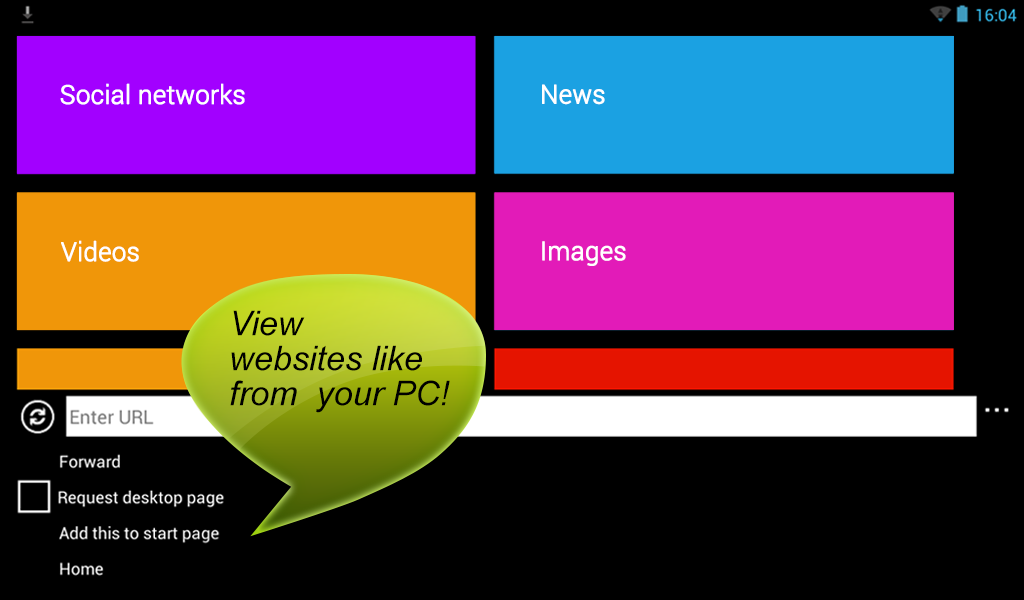
Turbo Browser is an extremely fast mobile browser! This browser is wholly aimed at fast and effective internet surfing using TURBO MODE!USE: Turbo Browser doesn't suits for slow websites downloading - that's why it enables the processor to run above its base operating frequency via dynamic control. This option is called TURBO MODE!
Enjoy your favorite online activities withour annoying waiting!
NICE DETAILS: Speed Up Internet Browser has a very useful feature - TURBO MODE. It provides an opportunity to make your browser faster than ever!

DISTRIBUTION: Turbo Browser is super fast mobile internet browser with great number of users across more than 130 countries and regions. This product is currently available on all major operating platforms.
OUR COMPANY: Speed UP Net (Subdivision of BESTTOOLBARS) is a keeping-up-with-a-time company. Our young and ambitious staff is setting goals and achieving it for five years. Speed UP Net’s deals with different types of internet software technologies and application services, but our main passion is BROWSERS! Since its inception Speed UP Net gets it on providing better mobile internet connection to our users around the world. Speed UP Net is totally devoted to its users and permanently does it's best to meet their requirements.
Turbo Browser provides better, faster, more effective searching experience.
Turbo Browser - screenshot

Turbo Browser - screenshot

Turbo Browser - screenshot

Turbo Browser - screenshot

Turbo Browser - screenshot

 
Download => Link 1 / Link 2 / Link 3


Wednesday, 23 October 2013


Puffin Web Browser apk
Pufffin Web Browser ဟာ အရမ္းေကာင္းမြန္ၿပီး ျမန္ဆန္တိက်မႈရွိတဲ့ web browser app တစ္ခုျဖစ္ ပါတယ္။ ဒီ app ထဲမွာ Incridible Load Speed ၊Fasttest JavaScript Engine ၊Full Web Experience ၊ Adobe Flash Support နဲ႔ Ingenious Virtual Mouse ဆိုၿပီး ေကာင္းမြန္ျပည့္စံုမႈရွိတဲ့အဆင့္ျမင့္ features ၅ မ်ိဳးကိုေထာက္ပံ့ေပးထားတာေၾကာင့္ အလြန္ထူးျခားဆန္းသစ္မႈရွိပါတယ္။ Remote-Browser နည္းပညာကို အသံုးျပဳထားတာေၾကာင့္ mobile-connection မေကာင္းတဲ့အခ်ိန္ေတြမွာေတာင္ အခ်က္အလက္ရွာေဖြမႈေတြ နဲ႔လုပ္ေဆာင္ခ်က္ေတြကို တိတိက်က်ျမန္ျမန္ဆန္ဆန္ျပဳလုပ္ႏိုင္ပါတယ္။ 32 cores နဲ႔ 768 GB memory ပါ၀င္တဲ့ အလြန္ေကာင္းမြန္ျမန္ဆန္မႈရွိတဲ့ Server ျဖစ္တဲ့အတြက္ iPad 3 မွာပါရွိတဲ့ browser ထက္လုပ္ ေဆာင္ခ်က္ေတြဟာ ၅၅၀ ရာခိုင္ႏႈန္းပိုျမန္ၿပီး Chrome ထက္ ရာခိုင္ႏႈန္း ၁၆၀၀ ေလာက္ပိုမိုျမန္ဆန္မႈရွိပါ တယ္။ Website နဲ႔ Gmail features ေတြကိုလည္းအျပည့္အ၀ေထာက္ပံ့ေပး
ထားၿပီး Flash နည္းပညာကုိထည့္သြင္းေပးထားတာေၾကာင့္ flash videos ေတြနဲ႔ Flash games ေတြကိုလုပ္
ေဆာင္ႏိုင္ပါတယ္။ တီထြင္ အားေကာင္းတဲ့ Virtual Mouse ပါရွိတဲ့အတြက္ desktop ေပၚမွာအသံုးျပဳရသလိုပဲ လုပ္ေဆာင္ခ်က္ေတြကို အဆင္ေျပေျပလုပ္ေဆာင္ႏိုင္ပါတယ္။ ဒီ Puffin Web Browser app ကိုအသံုးျပဳခ်င္
တယ္ဆိုရင္ေတာ့ Android OS 2.2 နဲ႔အထက္လိုအပ္ပါတယ္။


**  Step-1.ေအာက္က Download Button ကိုႏွိပ္လိုက္ပါ  

**  Step-2. "5sec". ေလာက္ေစာင္႕ေပးပါ။

**  Step-3. "  << SKIP AD >>   ".ကိုႏွိပ္ေပးပါ။

**  Step-4. Download Link က်လာပါလိမ္႕မယ္။

**  အဆင္ေျပပါေစဗ်ာ။


Monday, 21 October 2013


Firefox ေနာက္ဆံုးထြက္ပါ။ 22mb ရွိၿပီး Offline install လုပ္လုိ႕ရေအာင္ ေပးထားပါတယ္။ http://adf.ly/XuDp7 မွာ၀င္ဖတ္ၾကည့္ပါ။ ေအာက္ပါအတုိင္း ေဒါင္းလုတ္ဆြဲပါ။ အဆင္ေျပပါေစဗ်ာ။ PC အတြက္ေပးထားျခင္းျဖစ္ပါတယ္။

Description

The Web is all about innovation, and Firefox sets the pace with dozens of new features to deliver a faster, more secure and customizable Web browsing experience for all.
User Experience. The enhancements to Firefox provide the best possible browsing experience on the Web. The new Firefox smart location bar, affectionately known as the "Awesome Bar," learns as people use it, adapting to user preferences and offering better fitting matches over time.
Performance. Firefox is built on top of the powerful new Gecko platform, resulting in a safer, easier to use and more personal product.
Security. Firefox raises the bar for security. The new malware and phishing protection helps protect from viruses, worms, trojans and spyware to keep people safe on the Web.
Customization. Everyone uses the Web differently, and Firefox lets users customize their browser with more than 5,000 add-ons.


Download => Link 1 / Link 2
 
 
 Enjoy!
 
HNGET NGAI
 

Wednesday, 9 October 2013


19.09.2013 ရက္ေန႔ကထြက္လာတဲ့ pc အတြက္ Firefox browser beta အသစ္ေလးပါ

Firefox ခ်စ္သူတို႔အတြက္ ျပန္လည္ မွ်ေဝလိုက္ပါတယ္
ေအာက္က မူရင္းလင့္မွာလည္းဝင္ေရာက္ေဒါင္းယူႏိူင္ပါတယ္ ခင္ဗ်ာ


download
Browser Extensions ေတြဟာ အသံုး၀င္လွပါတယ္။ဒါေပမယ့္ Browser Extensions ေတြက  သင့္ System ရဲ ့ Memory ကို အသံုးျပဳေနၾကပါတယ္။Browser Extensions အမ်ားအျပားအသံုးျပဳျခင္းဟာ သင့္ Browser ကို ေလးလံေစပါတယ္။ အဲဒီအတြက္ Memory အသံုးျပဳမွုမ်ားတဲ့ Extension ေတြအစားေပါ့ပါးတဲ့ Extension ေတြကို အသံုးျပဳရင္ Browser ကိုျမန္ျမန္ဆန္ဆန္အလုပ္လုပ္ေစမွာပါ။ ဒီေဆာင္းပါးမွာ Browser Extension ေတြရဲ ့Memory Consumption,CPU Usage စတာေတြကို သိႏို္င္မယ့္နည္းေတြကို ေရးပါမယ္။


Mozilla Firefox
Firefox မွာ Browser Extensions ေတြ ရဲ  ့ Memory Usage ကိုသိႏုိင္ဖို ့ အတြက္ နည္းလမ္းမရွိပါဘူး။ Extension တစ္ခု ကို ထပ္ၿပီးအသံုးျပဳမွသာသိႏုိင္ပါတယ္။ about:addons-memory extension ကို Firefox မွာ အင္စေတာလုပ္ပါ။ၿပီးရင္ Address Bar ကေန about:addons-memory လို ့ရိုက္ၿပီး Enter ေခါက္ပါ။ ဒါဆိုရင္ အင္စေတာလုပ္ထားတဲ့ Extensions ေတြကို ေတြ ့ျမင္ရမွာျဖစ္ၿပီး Memory အသံုးျပဳမွုအလိုက္ စီထားတာေတြ ့ရမွာပါ။ Memory အသံုးျပဳမွုမ်ားတဲ့ Extension ေတြ ကို သိရွိႏိုင္ၿပီး Disable လုပ္ႏုိင္ပါၿပီ။
clip_image002

Google Chrome
Google Chrome က multi-process browser ျဖစ္ၿပီး Browser Extensions ေတြကသူတို ့ရဲ  ့ကိုယ္ပိုင္ Process အေနနဲ ့Run ၾကတာပါ။ Chrome ရဲ ့ Task Manager ကိုဖြင့္ၾကည့္ရင္ Extension ေတြရဲ  ့Memory Usage ,CPU Usage ေတြကိုေတြ ့ျမင္ႏုိင္ပါတယ္။ဒါ့အျပင္ Chrome Web Apps ေတြ ရဲ ့ Resources ေတြကို အသံုးျပဳေနမွုေတြကိုပါသိႏုိင္ပါတယ္။
Task Manager ကိုဖြင့္ဖို ့အတြက္ Chrome’s Menu Button ကိုႏွိပ္ပါ။Tools>Task Manager ကိုႏွိပ္ပါ။ Ctrl+Escape ကိုႏွိပ္ၿပီးဖြင့္လည္းရပါတယ္။
ဒါဆိုရင္ Extensions,Web Apps ေတြ ရဲ ့ Memory Usage ေတြကိုေတြ ့ျမင္ႏုိင္ၿပီးသင့္ Browser ကိုေႏွးေကြးေစတဲ့ Extension ေတြကို Disable လုပ္ႏုိင္ပါၿပီ။
clip_image004

Browser’s Safe Mode ကိုအသံုးျပဳပါ။
Browser ေတြ ရဲ ့ Safe Mode ကိုအသံုးျပဳရင္ Extension ေတြအားလံုးကို Disable လုပ္ေပးပါလိမ့္မယ္။အဲဒီအတြက္ Extension ေတြ အသံုးျပဳေနတဲ့အခ်ိန္က Browser ရဲ ့Performance နဲ ့ Extension ေတြ Disable လုပ္ထားတဲ့အခ်ိန္က Browser ရဲ  ့Performance ကိုႏွိင္းယွဥ္သိႏုိင္ပါတယ္။
Mozilla Firefox
Firefox button ကိုႏွိပ္ၿပီး Help>Restart with Add-ons Disabled ကိုႏွိပ္ပါ။
clip_image006

Google  Chrome
Chrome icon ကို right click ႏွိပ္ၿပီး Properties ကိုႏွိပ္ပါ။ Shortcut tab ကိုသြားပါ။ Target မွာ ေအာက္ကပံုမွာလို --disable extensions ဆိုတဲ့စာသားကို ေနာက္ဆံုးမွာျဖည့္ေပးၿပီး Ok ႏွိပ္ပါ။ Chrome Browser ကိုပိတ္ပါ။ System Tray က အိုင္ကြန္ကိုလည္းပိတ္ပါ။ ၿပီးရင္ Shortcut ကိုအသံုးျပဳၿပီး Chrome ကိုဖြင့္ပါ။ Safe Mode ကို Disable လုပ္ဖို ့ Shortcut မွာ Edit ျပန္လုပ္ၿပီး Chrome ကို Restart လုပ္ပါ။
clip_image008

Browser Extensions ေတြ ဟာ အသံုး၀င္ေပမယ့္ တစ္ျခား Software ေတြလို ပဲ သင့္ကြန္ျပဴတာမွာ Run ေနတာပါ။ Extension ေတြ အမ်ားအျပားအသံုးျပဳျခင္းဟာ Browser ကိုေလးေစပါတယ္။အဲဒီအတြက္ တကယ္အသံုးလို တဲ့ Extension ေတြကို ပဲအင္စေတာလုပ္သင့္သလို ၊ Memory အသံုးျပဳမွုနည္းပါးတဲ့ Extension ေတြကို ေရြးခ်ယ္အသံုးျပဳသင့္ပါတယ္။
 
Enjoy!
 
HNGET NGAI